How to Speed Up a Slow WiFi Connection: 12 Real Fixes

Why Your WiFi Feels Slower Than It Should
You’re paying for a fast internet plan, but web pages stall, video calls drop, and downloads crawl. The gap between what your ISP promises and what you actually get at your laptop is almost never the router’s fault alone. Slow WiFi usually comes from a combination of physical placement, radio interference, aging hardware, and router settings nobody has touched since the day it was installed.
This guide works through the most effective fixes in roughly the order you should try them — from the free, five-minute changes to the situations that genuinely do require new equipment.

Start Here: The Quick Checks
1. Measure your actual speed first
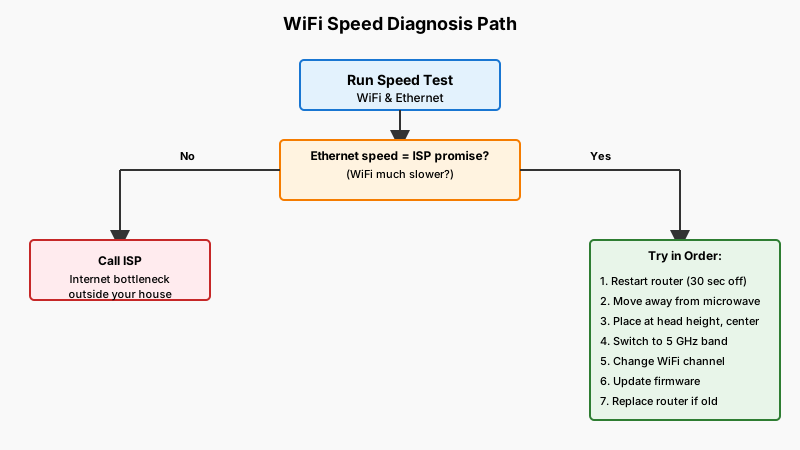
Before tweaking anything, run a speed test at a reliable site such as Fast.com or Speedtest.net. Do it twice: once on WiFi and once with a laptop plugged directly into the router via ethernet. If the wired speed matches what your ISP promises but the WiFi speed is much lower, the problem is in your wireless setup. If both are slow, call your ISP — the bottleneck is outside your house.
Write down the numbers. They become your baseline so you can tell whether a change actually helped.
2. Restart the router — properly
Power-cycling is not just folklore. Routers accumulate stale connections and memory leaks over weeks of continuous operation. Unplug the power adapter (not just the cable from the wall socket — the power brick itself), wait a full 30 seconds, then plug it back in. Allow two minutes for the device to fully initialize before testing again.
If this alone restores normal speed, schedule a weekly automatic reboot. Most modern routers have a scheduled-reboot option buried in their admin panel.
3. Check for obvious interference
WiFi signals — especially the 2.4 GHz band — share spectrum with microwave ovens, baby monitors, Bluetooth speakers, and neighboring routers. If your router sits next to the microwave in the kitchen or in a cabinet stuffed with other electronics, move it first and measure again before doing anything else.
Physical Placement and Router Position
Router placement is the single most underestimated factor in home WiFi performance. A few concrete principles:
- Height matters. WiFi antennas radiate signal outward and slightly downward. Placing a router on the floor in a corner is one of the worst possible positions. Put it on a shelf, bookcase, or desk — roughly at head height in the room where you use WiFi most.
- Central location. WiFi signal radiates in all directions but loses strength with every wall, floor, and appliance it passes through. If your router is at one end of the house and you work at the other, you are fighting physics. Moving the router to a central hallway or living area can double the usable signal in problem rooms.
- Keep it in the open. A router inside a cabinet, behind a TV, or inside a metal entertainment unit can lose 50% or more of its effective range. Even a single solid concrete or brick wall can halve signal strength.

Router Settings Worth Changing
4. Switch to the 5 GHz (or 6 GHz) band
Most routers since the mid-2010s are dual-band: they broadcast on both 2.4 GHz and 5 GHz simultaneously. The 2.4 GHz band has longer range but is notoriously congested — every neighbor’s router, smart home gadget, and wireless keyboard is competing on the same small slice of spectrum. The 5 GHz band is faster and far less crowded, though it doesn’t penetrate walls quite as well.
In your router’s admin panel (typically accessed at 192.168.1.1 or 192.168.0.1), check whether your bands have separate names (SSIDs) like “HomeNetwork” and “HomeNetwork_5G.” Connect devices that are close to the router to the 5 GHz network. If you have a newer WiFi 6E or WiFi 7 router, there may be a third 6 GHz band that offers even lower congestion.
5. Change your WiFi channel
Within each band, routers broadcast on a specific channel. If your neighbors’ routers are on the same channel, you’re all competing for the same airspace. A free tool like NetSpot (Mac/Windows) or the WiFi Analyzer app (Android) will show you which channels are congested in your area.
For the 2.4 GHz band, channels 1, 6, and 11 are the non-overlapping options — pick whichever one your neighbors use least. On the 5 GHz band, there are many more non-overlapping channels, so congestion is less of an issue, but it’s still worth checking.
6. Update your router’s firmware
Router manufacturers release firmware updates that fix bugs, patch security vulnerabilities, and sometimes meaningfully improve performance. Log into your router’s admin panel and look for a firmware or update section. Many newer routers (ASUS, TP-Link, Netgear, EERO) can check for and install updates automatically.
This takes five minutes and is almost always worth doing on a router that hasn’t been updated in a year or more.
7. Adjust your DNS settings
Every time you type a web address, your device queries a DNS server to translate that name into an IP address. Your ISP’s default DNS servers are often slow. Switching to a faster public DNS — Cloudflare’s 1.1.1.1 or Google’s 8.8.8.8 — can reduce the time between clicking a link and the page starting to load, sometimes noticeably so on the first request to any new site.
You can change DNS in your router’s admin panel (so every device benefits) or on a per-device basis in your network settings.
Device-Side Issues
Not every slowdown comes from the router. Your device plays a role too.
8. Check for bandwidth-hungry background apps
Windows Update, iCloud backup, Dropbox syncing a large folder, or a streaming app caching content can consume a large portion of your available bandwidth without any obvious sign. On Windows, open Task Manager → Performance → Open Resource Monitor → Network tab to see which processes are consuming bandwidth. On a Mac, use Activity Monitor → Network.
Temporarily pausing heavy background tasks while doing something latency-sensitive (a video call, online gaming) is often enough to restore smooth performance.
If your device itself feels sluggish beyond just the network, our guide How to Fix a Slow Laptop: 12 Proven Speed Fixes covers other culprits worth ruling out.
9. Update your device’s network adapter driver
On Windows PCs especially, an outdated or glitchy WiFi adapter driver can cause erratic speeds and disconnections. Open Device Manager, expand Network Adapters, right-click your WiFi adapter, and choose “Update driver.” This is a minor thing but worth a check on any machine that’s been sluggish since an OS update.
10. Forget and reconnect to the network
Devices sometimes cache a poor connection state. Forgetting the WiFi network entirely and reconnecting from scratch forces a clean negotiation of connection parameters. This takes 90 seconds and occasionally fixes unexplained persistent slowness on a single device.

When You Need More Hardware
11. Add a WiFi extender, mesh node, or powerline adapter
If your home has dead zones — rooms where the signal is genuinely weak regardless of router placement — you have three options:
- WiFi range extender: Affordable (typically $30–$80) but they create a separate network and usually cut bandwidth roughly in half because they receive and retransmit on the same radio. Good for light browsing in a bedroom or garage, not ideal for video calls.
- Mesh WiFi system: Systems like Eero, Google Nest WiFi, or TP-Link Deco use a dedicated backhaul channel or wired connections between nodes, avoiding the bandwidth halving problem. They create a single seamless network. Expect to pay $150–$400 for a two- or three-node kit. For homes over roughly 2,000 square feet, this is usually the right solution.
- Powerline adapter: Uses your home’s electrical wiring to carry a network signal between rooms. Works well in homes where running ethernet cable is impractical. Speed varies depending on the age and quality of your home’s wiring.
12. Consider replacing an old router
Routers have a practical lifespan. A router more than five or six years old likely predates WiFi 5 (802.11ac) or WiFi 6 (802.11ax), and may not be able to handle the number of devices in a modern home (smart TVs, phones, tablets, laptops, smart home devices all compete for connections). If you’ve tried the steps above and your router is aging, a new mid-range WiFi 6 or WiFi 6E router — available from $60 to $200 — can make a genuine difference.
A Note on Your Internet Plan
All of the above assumes your base internet connection is adequate. If you have six people in the house simultaneously streaming 4K video and attending video calls, even a perfectly tuned router can’t conjure bandwidth that isn’t there. Check your ISP’s plan speeds against what modern usage actually requires — household internet needs have increased substantially over the past decade — and consider whether an upgrade is warranted.
For readers looking to trim costs and waste elsewhere in the house, How to Make Your Home More Energy Efficient: Seal, Insulate, Save offers a similar room-by-room approach to efficiency.
Putting It Together
Slow WiFi is almost always fixable without spending anything, or spending very little. The order of attack:
- Measure the actual problem with a speed test.
- Restart the router and move it to a better position.
- Switch congested devices to the 5 GHz band and pick a less-crowded channel.
- Update firmware and DNS.
- Check for device-side issues — background processes, outdated drivers.
- If dead zones persist, add a mesh node or powerline adapter.
- Replace the router if it’s old and the above hasn’t helped.
Most people find a fix somewhere in steps one through four. The physical and settings changes are free, reversible, and often dramatic — there’s no reason not to start there before buying anything.