How to Fix a Slow Laptop: 12 Proven Speed Fixes

If your laptop has gone from snappy to sluggish, you’re not imagining it — and you don’t necessarily need to buy a new one. Most slowdowns have a handful of root causes, and nearly all of them are fixable without an engineering degree or a trip to a repair shop.
This guide walks through the most effective fixes, ordered roughly from quickest to most involved. Work through them in sequence and you’ll likely find the culprit before you reach the end.
1. Rule Out the Obvious: Restart and Check Battery Mode
It sounds too simple, but a laptop that hasn’t been properly restarted in days accumulates memory leaks, stalled processes, and a heap of pending system tasks. A full shutdown — not just closing the lid — clears a surprising amount of cruft.
While you’re at it, check your power plan. Most operating systems throttle CPU performance automatically when the laptop is unplugged or set to a “Battery Saver” mode. Plug in, switch to a Balanced or High Performance plan, and retest speed before diving deeper.
Windows: Search for Power & sleep settings → Additional power settings → choose Balanced or High Performance.
macOS: System Settings → Battery → disable “Low Power Mode” when plugged in.
2. Identify What’s Actually Eating Your Resources
Before you start deleting things at random, open a task manager and look at what’s running.
- Windows: Press
Ctrl + Shift + Escto open Task Manager. Click the CPU or Memory column header to sort by usage. - macOS: Open Activity Monitor (Applications → Utilities). Check the CPU and Memory tabs.
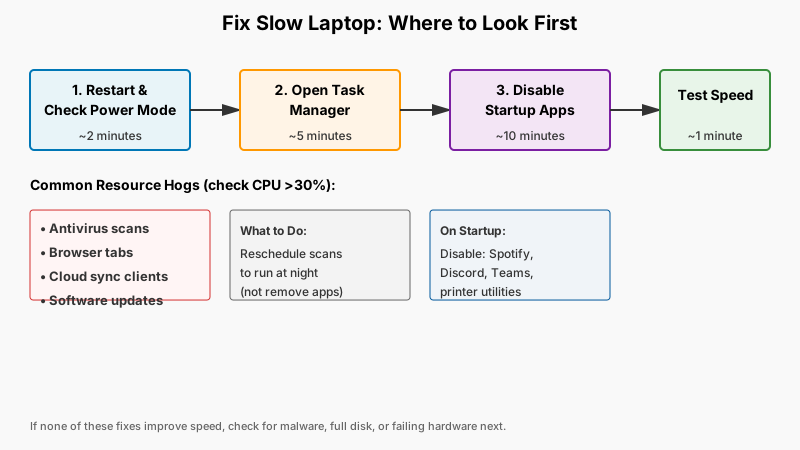
Look for processes using 30–80% of CPU when you’re doing nothing intensive. Common offenders:
- Antivirus scans — these are legitimate but can be rescheduled to run overnight.
- Browser tabs — Chrome and Edge are notorious memory hogs. A single tab with an auto-playing video can spike CPU on its own.
- Cloud sync clients — Dropbox, OneDrive, and Google Drive index files aggressively right after login.
- Windows Update or macOS software update processes — they run in the background and finish on their own; just wait them out.
If you spot an unfamiliar process chewing through resources, search its exact name online before killing it — some system processes look suspicious but are essential.

If it’s your internet that feels sluggish rather than the machine itself, How to Speed Up a Slow WiFi Connection: 12 Real Fixes walks through the fixes worth trying first.
3. Cut Down Startup Programs
Every app you’ve ever installed tries to launch itself at boot. Over time, this turns a 20-second startup into a 2-minute crawl — and those programs keep running quietly in the background.
Windows:
- Open Task Manager → Startup apps tab.
- Right-click anything you don’t need immediately at login (Spotify, Discord, Teams, printer utilities) and choose Disable.
macOS:
- Go to System Settings → General → Login Items.
- Remove anything you don’t actively need at startup.
What “Login Items” doesn’t show you
We measured this on 2026-08-22 on one machine — an Apple M5 Pro with 48 GB of RAM, running macOS. System Settings listed 5 login items. The same account had 536 background agents registered with the system, 284 of them running at that moment.
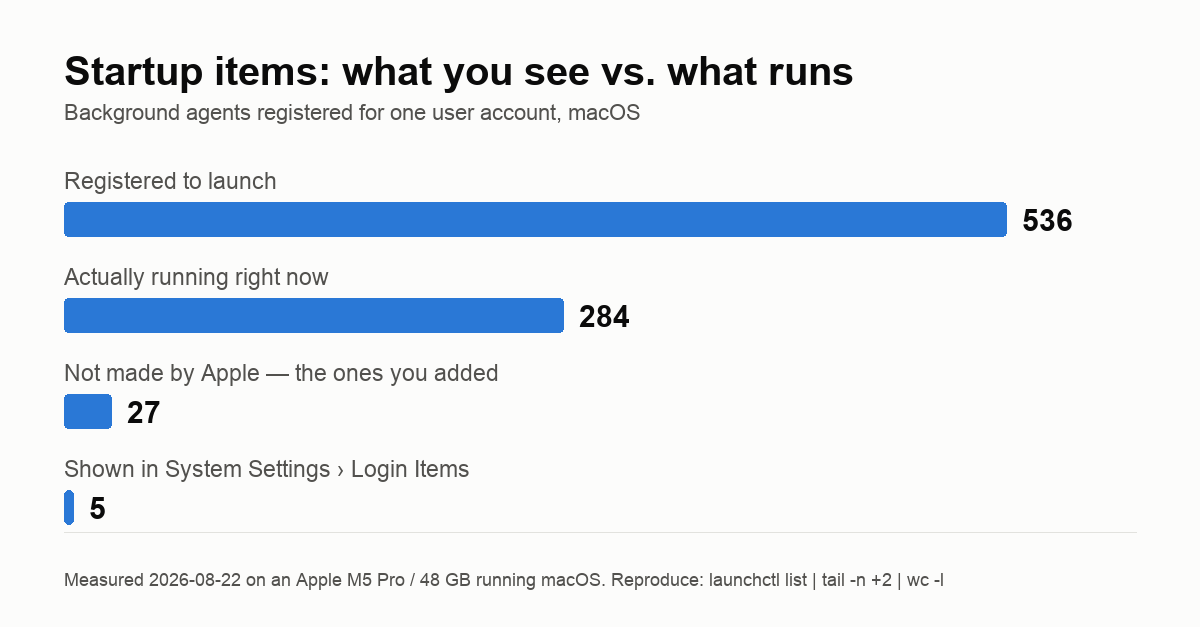
That gap changes what you should actually do. Of those 536, 509 belong to macOS itself — they are not yours to prune, and switching them off is how people break Spotlight, Handoff or Time Machine. Only 27 came from software we had installed. That short list is the one worth reading.
Check your own machine:
launchctl list | tail -n +2 | wc -l                 # registered for your user
launchctl list | tail -n +2 | grep -v com.apple.    # the ones you added
On Windows the Startup apps tab has the same blind spot: it lists launchers, but not scheduled tasks or services. Get-ScheduledTask | Where-Object State -ne "Disabled" in PowerShell shows what the tab leaves out.
Two things we ran into, so you don’t misread your own numbers. The count drifts by a few between snapshots as agents start and stop — we saw 536 and 537 minutes apart — so no single reading is exact. And a long list is not automatically a fault: most of those 284 processes sit idle and cost nothing you can measure. Volume tells you where to look, not that something is wrong.
Be selective — don’t disable your antivirus or cloud backup agent. But disabling five or six unnecessary launchers can noticeably reduce both boot time and background CPU use.
4. Free Up Disk Space
A drive that’s more than 85–90% full slows down measurably. This is especially true for traditional spinning hard drives (HDDs), but SSDs also degrade in write performance when nearly full because they need free blocks to manage data efficiently.
Quick wins:
- Empty the Recycle Bin / Trash.
- Delete files in your Downloads folder you no longer need.
- Uninstall applications you haven’t opened in months.
Deeper clean on Windows:
- Search for Disk Cleanup, run it, and also click Clean up system files. This often recovers several gigabytes from Windows Update caches alone.
- Check Storage Sense in Settings → System → Storage and enable automatic cleanup.
Deeper clean on macOS:
- Go to System Settings → General → Storage. Use the built-in recommendations to identify large files, old iOS backups, and caches.
Aim to keep at least 15–20% of your total storage free.
5. Check for Malware
Slow performance is one of the most common symptoms of a malware infection — cryptomining software in particular will push your CPU to near 100% continuously.
- Windows: Windows Security (built-in) is genuinely capable. Run a full scan: Windows Security → Virus & threat protection → Quick scan (or Full scan for a thorough check).
- macOS: macOS has built-in protections (XProtect, Gatekeeper), but a second-opinion scan with Malwarebytes (free version) is worth running if you’re suspicious.
If a scan finds something and removes it, restart and check performance again before continuing.
6. Update Your Drivers and Operating System
Outdated drivers — particularly for graphics and chipset — are a less obvious but real cause of sluggishness. Manufacturers release driver updates that fix performance bugs and reduce power consumption.
Windows:
- Run Windows Update fully, including optional updates.
- For GPU drivers: visit the manufacturer’s site directly (NVIDIA, AMD, or Intel) rather than relying solely on Windows Update.
macOS:
- Keep macOS current via System Settings → General → Software Update. Apple bundles driver updates into OS releases, so there’s no separate driver hunt.

7. Adjust Visual Effects
Animations and transparency effects look polished but burn CPU and GPU cycles, especially on older hardware.
Windows:
- Search for Adjust the appearance and performance of Windows.
- Select Adjust for best performance — or manually uncheck the most expensive effects (animations, transparency, shadows).
macOS:
- System Settings → Accessibility → Display → enable Reduce Motion and Reduce Transparency.
The difference on a machine with integrated graphics or a slow CPU is often immediate and striking.
8. Manage Your Browser
Your browser is now effectively an operating system within your operating system, and it’s one of the biggest performance drains on modern laptops.
- Limit open tabs. Each tab consumes memory. Use a tab manager extension or simply close tabs you’ve finished with.
- Audit extensions. Go to your browser’s extension manager and remove anything you don’t actively use. Some extensions (ad injectors, “productivity” tools from unknown developers) run code on every page you load.
- Enable hardware acceleration. In Chrome: Settings → System → toggle on Use hardware acceleration when available. This offloads rendering to the GPU.
- Try a different browser. Firefox and Brave tend to be lighter on memory than Chrome for comparable workloads.
9. Check Thermals: Clean the Vents
This one gets overlooked, but it matters enormously. When a laptop overheats, the processor automatically reduces its clock speed — a protective mechanism called thermal throttling — to avoid damage. If your laptop gets warm under moderate load and the fans run loud, it may be choking itself.
Dust buildup in the cooling vents is the usual cause. Fix it:
- Shut down and unplug the laptop.
- Use a can of compressed air to blow through the vent grilles — typically on the bottom and side of the chassis. Do this in short bursts.
- If the laptop runs much hotter than it used to, and you’re comfortable opening it, cleaning the heatsink fins and replacing the thermal paste on the CPU can make a dramatic difference. If you’re not confident doing this, any computer repair shop can handle it for a modest fee.
A laptop that was throttling at 60% of its normal speed due to heat can return to full performance just from a cleaning.

10. Upgrade Your RAM (If Possible)
If Task Manager consistently shows memory usage above 80–90% while you work normally, adding RAM will make a tangible difference. Both Windows and macOS fall back on virtual memory — paging to disk — which is dramatically slower, especially on HDDs.
What is easy to get wrong is when that begins. It is not only when RAM runs out. On the same machine as above — 48 GB of RAM, reporting 59% of memory free — sysctl vm.swapusage returned used = 2788.81M, and vm_stat showed 961,407 pages (16 KB each, so roughly 14.7 GB) held by the memory compressor. Modern memory managers compress and page continuously, well before physical RAM is exhausted. So “swap is in use” on its own is not evidence that you need more RAM — sustained pressure while you actually work is. Check yours:
sysctl vm.swapusage                          # macOS: swap in use
vm_stat | grep -E 'compressor|Swapouts'      # macOS: compressed pages
On Windows, Task Manager → Performance → Memory reports Committed alongside In use; a committed figure larger than your physical RAM is normal and not an alarm by itself.
Check if your laptop’s RAM is user-upgradeable. Many thin-and-light models solder RAM to the motherboard, making upgrades impossible. But mid-range business laptops, gaming laptops, and older machines often have accessible SO-DIMM slots.
The jump from 8GB to 16GB makes a significant difference for multitasking, running multiple browser tabs, and using apps like Photoshop or video editors.
11. Upgrade to an SSD (The Single Biggest Speedup)
If your laptop still has a traditional spinning hard drive, replacing it with an SSD is the single most effective hardware upgrade you can make. The difference isn’t incremental — it’s transformational. Boot times drop from minutes to seconds; apps open instantly; the whole system feels like a different machine.
SSDs have dropped considerably in price. A 500GB SATA SSD costs under $50 in most markets. If your laptop uses a 2.5-inch SATA drive bay (very common on machines made in the last 15 years), this is a weekend project that pays off for years.
You’ll need:
- An SSD (SATA or NVMe, depending on your laptop’s slot)
- A USB-to-SATA adapter or enclosure to clone your old drive
- Cloning software (Macrium Reflect Free on Windows, or
dd/Carbon Copy Cloner on macOS/Linux)
If cloning sounds daunting, a fresh OS install onto the SSD is even simpler and gives you a clean slate.
12. Consider a Fresh OS Install
If you’ve worked through everything above and the laptop still underperforms, a clean reinstall of the operating system is the nuclear option — and it genuinely works. Years of accumulated software, background agents, and registry clutter can compound into performance you can’t easily untangle.
- Windows: Settings → System → Recovery → Reset this PC. Choose Remove everything for a truly fresh start, or Keep my files to preserve personal data.
- macOS: Use macOS Recovery (hold
Cmd + Rat startup on Intel Macs; hold the power button on Apple Silicon) to reinstall the OS.
Back up your data first. Then reinstall only the software you actually use.
What to Expect
For most laptops, the combination of clearing startup programs, freeing disk space, cleaning the vents, and updating drivers restores 80–90% of the original performance. The SSD upgrade, if applicable, does the rest.
Hardware eventually ages to a point where software fixes stop helping — a 12-year-old dual-core laptop with integrated graphics has real architectural limits. But in most cases, a machine that feels slow isn’t actually broken; it just needs attention.
Work through these steps methodically, and there’s a good chance you’ll spend less than an hour and save yourself the cost of a replacement.
Sources
- https://support.microsoft.com/en-us/windows/tips-to-improve-pc-performance-in-windows-b3b3ef5b-5953-fb6a-2528-4bbed82fba96
- https://support.apple.com/en-us/102669
- https://www.malwarebytes.com/
- https://docs.microsoft.com/en-us/windows-hardware/drivers/
- https://support.microsoft.com/en-us/windows/disk-cleanup-in-windows-8a96ff42-5751-39ad-23d6-434b4d5b9a68