How to Create a Simple Document Filing System That Works

Why Most Filing Systems Fail (and What to Do Instead)
Most people don’t struggle with filing because they’re disorganized by nature. They struggle because their system was built around how documents arrive, not how they’re retrieved. You file by date, then six months later you’re searching for an insurance certificate by frantically flipping through a 2019 folder. Sound familiar?
A genuinely simple filing system starts with one question: how will I look for this later? That question — not the document type, not the source — should drive every decision you make.
This guide covers how to build a physical and/or digital filing system from scratch, organize it logically, maintain it without constant effort, and handle the common edge cases that trip people up.
Step 1: Audit What You Actually Have
Before you buy a single folder or create a new folder on your desktop, spend 20 minutes doing a ruthless audit of your existing documents. Pull everything out. Lay it flat. Ask of each item:
- Do I legally need to keep this?
- Would I need to show this to someone else (doctor, accountant, landlord)?
- Would replacing it cost me significant time or money?
If the answer to all three is no, it’s a candidate for the recycling bin (or the shredder, if it contains personal data).
What to Keep and for How Long
There’s no universal rule, but here are reliable general guidelines:
- Tax records and supporting documents: 7 years is the safe standard in most countries, since that’s a common audit window.
- Bank and credit card statements: 1–3 years unless tied to a tax-deductible transaction.
- Contracts and leases: Keep for the full duration plus a few years after they expire.
- Insurance policies: Keep the current policy plus one cycle back.
- Property records (deeds, titles, renovation permits): Permanently, or until you no longer own the asset.
- Medical records: Permanently, or as long as the healthcare relationship is active.
- Pay stubs: Until you receive your annual summary (W-2, P60, or equivalent), then shred the stubs.
When in doubt, check with your accountant or a legal professional for jurisdiction-specific rules.

Step 2: Choose Your System Type — Physical, Digital, or Hybrid
There’s no single right answer here. Pick based on how documents come to you and how you naturally search.
Physical Filing
Best for people who receive a lot of paper mail, work in environments without reliable digital access, or simply prefer tactile handling. You need:
- A filing cabinet or portable file box
- Hanging file folders (the kind with metal tabs that sit in a drawer)
- Manila folders to sit inside the hanging folders
- A label maker or clear handwriting
Avoid accordion folders for anything beyond temporary storage — they become a grab-bag quickly.
Digital Filing
Best for people whose documents arrive mostly as PDFs, emails, and online statements. The tools don’t matter much — Windows Explorer, macOS Finder, Google Drive, Dropbox — what matters is the folder structure and naming convention. The system described below works in any of them.
One important habit: always save files with a consistent naming format. The most scannable format is:
YYYY-MM-DD_Category_Description.pdfFor example: 2024-03-15_Tax_Freelance-Invoice-Adobe.pdf
Date-first naming means files sort chronologically by default in any file browser, which is almost always how you want to search.
Hybrid (Recommended for Most People)
Physical for originals you must retain (birth certificates, signed contracts, property deeds), digital for everything else. Scan physical documents with a phone camera app (many phones have built-in document scanning now) and file the scan digitally while storing the original.
A tidy filing system tends to go hand in hand with a tidy desk, so it’s worth also checking out How to Keep a Workspace Tidy: Design a System That Fights Friction for ideas on keeping the physical space around your files just as friction-free.
Step 3: Build Your Category Structure
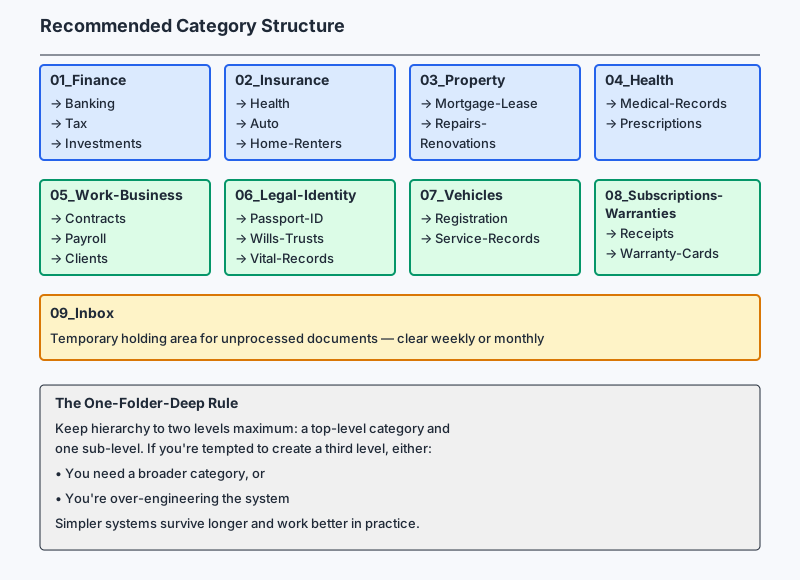
This is the core of the system. Use broad categories, not micro-categories. Too many folders creates the same problem as no folders at all — you can’t remember which pigeonhole you used.
A reliable structure for a household or solo freelancer looks like this:
01_Finance
   → Banking
   → Tax
   → Investments
02_Insurance
   → Health
   → Auto
   → Home-Renters
03_Property
   → Mortgage-Lease
   → Repairs-Renovations
04_Health
   → Medical-Records
   → Prescriptions
05_Work-Business
   → Contracts
   → Payroll
   → Clients (if freelance)
06_Legal-Identity
   → Passport-ID
   → Wills-Trusts
   → Vital-Records
07_Vehicles
   → Registration
   → Service-Records
08_Subscriptions-Warranties
   → Receipts
   → Warranty-Cards
09_Inbox (temporary holding area)
The Inbox folder is critical. It’s where anything unprocessed lives — and it should be cleared weekly or at minimum monthly. Having a dedicated holding spot stops random documents from landing everywhere.
The One-Folder-Deep Rule
For most households and small businesses, keep your hierarchy to two levels maximum: a top-level category and one sub-level. If you’re tempted to create a third level, it’s a signal you either need a broader category or you’re over-engineering.

Step 4: Label Everything Consistently
Inconsistent labeling kills otherwise good systems. Pick a convention and stick to it. A few principles:
- Use nouns, not verbs: “Insurance” not “Insuring”; “Tax” not “Taxing.”
- Lead with what’s most searchable: Put the category or institution name first, not the date (dates belong in the filename, not the folder name).
- Avoid abbreviations only you understand: “Misc” is a graveyard folder in disguise.
- Physical labels: Use a label maker if possible. Handwritten labels are fine but use consistent capitalization and pen color.
For physical folders, color-coding by major category (blue for Finance, red for Legal, green for Health) adds a visual layer that speeds up retrieval significantly.
Step 5: Set Up a Simple Maintenance Routine
A filing system only works if it stays current. The good news is that maintenance doesn’t require a dedicated Saturday — it takes about 10–15 minutes a week if you follow this structure:
Weekly (5–10 minutes)
- Clear your physical inbox tray or email inbox of new documents.
- File or scan-and-file anything that arrived.
- Shred anything you’ve already processed and don’t need.
Quarterly (20–30 minutes)
- Check the digital Inbox folder — if it’s accumulated more than 20 items, something is breaking down upstream.
- Archive anything older than a year that you’re unlikely to need actively (move to an
_Archivesubfolder). - Update insurance policy folders when renewals arrive.
Annually (1 hour)
- Purge documents past their retention date.
- Back up your digital files to a second location (external drive, cloud backup, or both).
- Check that anyone else who might need access (a spouse, a business partner) can actually find things.
Step 6: Solve the Common Edge Cases
“I have documents that belong in two places”
Pick one. The discipline of choosing is the point — it forces you to think about retrieval. If a car insurance document could go in Insurance > Auto or Vehicles, ask yourself: when I need this, will I be thinking about my car or about insurance? For most people, insurance documents cluster better under Insurance, regardless of what they cover.
In a digital system, you can use shortcuts/aliases/symlinks to reference a file from a second location without duplicating it.
“I receive almost everything digitally now, but some things are still paper”
This is where a cheap document scanner or a phone scanning app pays off. Apps like Apple Notes, Microsoft Lens, or Google PhotoScan can produce clean, searchable PDFs from a phone camera. Scan on receipt, shred (or securely store) the original, and file the PDF.
“My filing system needs to work for a small team or family”
Shared systems require shared conventions. Write down your folder structure and naming rules in a single text file stored at the root of your shared drive — name it _README.txt so it sorts to the top. One page is enough. If everyone knows the convention, the system survives people adding documents independently.

“I have years of unfiled backlog”
Don’t try to file it all at once — you’ll burn out and quit. Use the “good enough” method: box the backlog with a date label, create your new system for everything going forward, and dip into the backlog box once a month to file a handful of items. The backlog shrinks gradually without becoming a project that never starts.
Making It Stick: The Psychology of Keeping Order
The most technically elegant filing system means nothing if you don’t use it. A few observations that help:
- Friction kills habits. If scanning takes three steps, you’ll skip it. Set up your scanner app on your phone’s home screen. Keep your filing cabinet in the same room where you open mail.
- The inbox tray is not a filing system. It’s a queue. Documents sitting in a tray are unfiled; acknowledge that and schedule the filing.
- Done is better than perfect. Filing something in the approximately right folder is infinitely better than leaving it on the kitchen counter for three months. The goal is retrievability, not perfection.
- Name things like future-you is searching. When naming a digital file, ask: what words will I type into a search bar when I need this at 11pm in a panic? Include the institution name, the document type, and any distinguishing detail.
If your filing habits tend to slip once work gets busy, Simple Ways to Stay Organized at Work (That Actually Stick) offers complementary tactics for staying consistent day to day.
Conclusion
A simple document filing system doesn’t require special software, expensive furniture, or a weekend-long reorganization project. It requires three things: a clear category structure that mirrors how you search (not how documents arrive), a consistent naming convention, and a short weekly habit that keeps it from sliding into chaos.
Start with the audit. Build only as many categories as you genuinely need. File one thing today using your new system, then file the next thing tomorrow. The habit forms faster than most people expect, and the relief of being able to find a document in under two minutes — when the landlord calls, when the accountant emails — is worth every bit of the initial setup.