How to Back Up Photos to the Cloud: Stop Assuming You're Covered

Losing photos is one of those digital disasters that feels uniquely irreversible. A crashed hard drive, a stolen phone, or a factory reset gone wrong — and suddenly years of memories are gone. Cloud backup solves that problem permanently, but the options are confusing enough that most people either pick the wrong service or set it up incorrectly and assume they’re covered when they’re not.
This guide cuts through that confusion. You’ll learn how cloud photo backup actually works, which services are worth using, and how to make sure your backup is genuinely doing its job.
How Cloud Photo Backup Actually Works
When you back up photos to the cloud, your device uploads copies of your images to remote servers maintained by a cloud provider. Those copies are stored independently of your phone or computer, which means if your device is lost or damaged, your photos survive.
Most cloud backup apps run in the background and sync automatically whenever you’re on Wi-Fi — you don’t have to remember to do anything after the initial setup. That automatic behavior is the whole point: a backup you have to manually trigger is a backup you’ll eventually forget.
Original Quality vs. Compressed Storage
One thing many people miss: most services offer two storage modes.
- Original quality stores your photos exactly as your camera captured them — full resolution, all metadata intact. This uses your full storage quota.
- Compressed or “storage saver” quality reduces file size, often imperceptibly for casual viewing but noticeably if you print large or crop heavily.
If you shoot with a high-end smartphone or a standalone camera, original quality is worth the extra storage cost. If you’re primarily keeping snapshots for social sharing, compressed is fine.
What “Sync” vs. “Backup” Actually Means
These two words get used interchangeably, but they’re not the same thing.
- Sync keeps your photos consistent across multiple devices. Delete a photo on your phone, and it disappears from your tablet too.
- Backup preserves copies regardless of what you do on your device. Delete a photo, and the backup still has it.
Some services are primarily sync tools (iCloud Photos behaves this way by default). Others are true backup services. Know which one you’re using, because it changes what happens when you accidentally delete something.

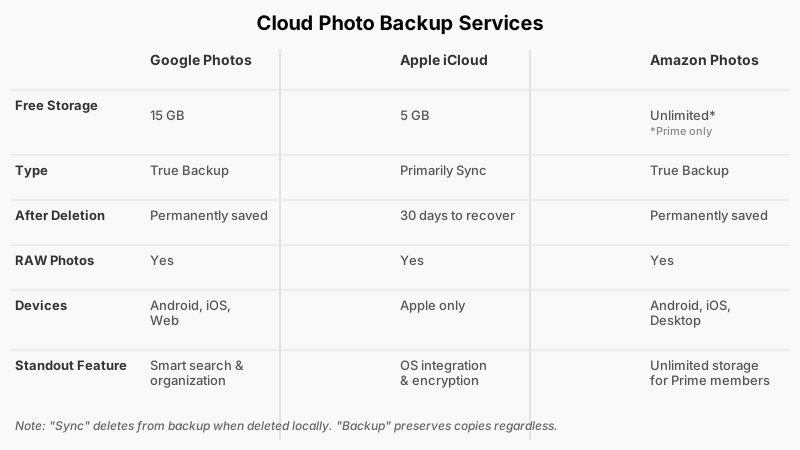
The Main Cloud Photo Backup Services Compared
There are several strong options, and the best one depends on which devices you use, how much storage you need, and your privacy preferences.
Google Photos
Google Photos is the most popular cloud photo service globally, and for good reason. It has excellent automatic organization — it can group photos by location, date, and even recognize recurring subjects — and the app works on Android, iOS, and via any web browser.
Storage: Google gives every account 15 GB free, shared across Gmail, Drive, and Photos. Beyond that, Google One plans start at around 100 GB. If you have a large library, you’ll likely need a paid plan eventually.
Key strengths: Smart search (find photos by typing “beach” or “birthday”), Memories feature, cross-platform accessibility, and the ability to free up local storage by removing device copies after backup.
Worth noting: Google’s business model is advertising. Your photos are not used for ad targeting, but privacy-conscious users sometimes prefer alternatives.
Apple iCloud Photos
For iPhone and Mac users, iCloud Photos integrates seamlessly into the OS. You don’t need a separate app — it’s baked into the Photos app on every Apple device.
Storage: Apple gives 5 GB free, which fills up fast. iCloud+ plans start at 50 GB. Family Sharing lets you pool storage across up to six family members.
Key strengths: Tight integration with Apple’s ecosystem, end-to-end encryption available via Advanced Data Protection (opt-in), and Live Photos and RAW files are preserved faithfully.
Limitation: iCloud Photos is primarily a sync service. If you delete a photo on your iPhone, it’s gone from iCloud within 30 days unless you recover it from the Recently Deleted album. It’s not a traditional backup in the “keep everything forever” sense.
Amazon Photos
Amazon Prime members get unlimited full-resolution photo storage included with their membership — a genuinely significant perk that’s easy to overlook.
Storage: Unlimited original-quality photos for Prime subscribers (videos get 5 GB). Non-Prime users can purchase storage.
Key strengths: Truly unlimited photo storage at no extra cost for Prime members, RAW file support, available on Android, iOS, and desktop.
Limitation: The interface and organizational tools are less polished than Google Photos. It works well as a backup but isn’t as capable as a browsing and discovery tool.
Microsoft OneDrive
Microsoft 365 subscribers get 1 TB of OneDrive storage, and the OneDrive app on mobile can automatically back up your camera roll.
Key strengths: Excellent for users already in the Microsoft ecosystem, deep Windows integration, and the sheer amount of storage that comes with a Microsoft 365 subscription.
Dedicated Backup Services: Backblaze and Flickr
Backblaze ($9/month) backs up everything on your computer — not just photos — making it a comprehensive solution for users with large local libraries on a PC or Mac. It’s not primarily a photo browsing experience, but as a pure backup it’s thorough.
Flickr offers 1,000 photos free and paid plans for serious photographers who want a public-facing portfolio alongside backup. Less useful for casual family photos.

Setting Up Cloud Photo Backup: Step by Step
The exact steps vary by service, but the core process is consistent across platforms.
If you’re setting this up on a work computer, 12 Tips for Organizing a Home Office That Actually Works has useful tips for keeping your whole digital workspace tidy alongside your new backup routine.
On an iPhone (iCloud Photos)
- Open Settings → tap your name at the top → iCloud → Photos.
- Toggle on Sync this iPhone (older iOS versions show “iCloud Photos”).
- Choose Optimize iPhone Storage to keep device storage manageable, or Download and Keep Originals if you want full-resolution copies locally.
- Plug in overnight and connect to Wi-Fi — the initial upload can take hours or days for large libraries.
For additional safety: consider enabling Advanced Data Protection under Settings → your name → iCloud → Advanced Data Protection. This turns on end-to-end encryption for your iCloud backup.
On an Android Phone (Google Photos)
- Download the Google Photos app if it isn’t preinstalled.
- Open the app and sign into your Google account.
- Tap your profile photo (top right) → Photos settings → Backup.
- Toggle Backup on.
- Choose your upload quality: Original quality or Storage saver.
- Under Backup over Wi-Fi only, toggle on if you don’t want to use mobile data.
- Let the first sync complete — keep the app open or plugged in to speed things up.
On a Computer (Windows or Mac)
For backing up photos from a desktop or laptop:
- Google Photos: Install the Google Photos Backup desktop tool, or use Google Drive for desktop and point it at your Photos folder.
- iCloud for Windows: Download iCloud for Windows from Microsoft’s app store, sign in, and enable Photos sync.
- Amazon Photos: Install the Amazon Photos desktop app and select folders to back up automatically.
- Backblaze: Install and it backs up everything continuously, including your photo folders.
Verify Your Backup Is Actually Working
This step gets skipped constantly, and it’s the most important one.
- Open the cloud service on a different device (a tablet, a family member’s phone, or a computer) and confirm your recent photos appear there.
- Check the “backup status” indicator in the app — Google Photos, for example, shows a confirmation message when everything is backed up and a spinning icon when it’s still working.
- For iCloud, go to Settings → your name → iCloud and check that Photos isn’t showing an error.
- Try downloading one of the backed-up photos to confirm the file isn’t corrupted.
Don’t assume the setup worked. Confirm it.
Making Your Photo Backup Genuinely Reliable
Setting up a backup once isn’t enough. Here’s what keeps it working long-term.
Follow the 3-2-1 Rule
Professional archivists and IT teams use the 3-2-1 rule: keep 3 copies of your photos, on 2 different types of storage, with 1 copy offsite. In practice, this could mean:
- Photos on your phone (copy 1)
- Backed up to Google Photos or iCloud (copy 2, offsite)
- Periodically exported to an external hard drive at home (copy 3, different media)
Cloud alone is solid. Cloud plus a physical backup is genuinely safe.
Watch Your Storage Quota
Most services stop syncing new photos when you hit your storage limit — without sending an obvious warning. Check your storage usage every few months. You’ll find this in the app settings under storage or account info.
Keep the App Updated and Notifications On
Cloud backup apps occasionally lose sync permissions after OS updates. If the backup app sends a notification saying it needs attention, take 30 seconds to open it and resolve the issue.
Export Your Photos Periodically
Don’t become entirely dependent on one company’s platform. Google lets you export your entire library via Google Takeout (takeout.google.com). iCloud lets you download photos through iCloud.com. Do this once a year and store the export on an external drive.

Before you export anything, it’s worth reading How to Organize Digital Photos: A Step-by-Step System so the files you pull down land in a folder structure that actually makes sense.
Common Mistakes to Avoid
Assuming the setup is complete because you clicked “yes.” Initial uploads can take days. If you have 20,000 photos, expect the first sync to run for 48–72 hours on a reasonable connection.
Using the free tier and running out of space. When storage fills up, backups silently stop. A $3/month plan for 100 GB avoids this entirely.
Relying only on sync instead of backup. Especially for iCloud users: if you delete photos and empty the Recently Deleted album, they’re gone. Consider pairing iCloud with a second service like Google Photos or Amazon Photos for a true backup copy.
Not backing up from a computer. Many people sync their phone but have years of older photos sitting in folders on a laptop that’s one hard drive failure away from being lost.
Conclusion
Cloud photo backup is not complicated once you understand how each service works and what its limitations are. Pick a service that fits your devices and budget, set it up correctly, verify it’s running, and add a second copy somewhere physical if your photos really matter to you. That’s the entire framework.
The worst time to think about photo backup is after something goes wrong. Ten minutes of setup now is worth far more than the regret of not having it.
Sources
- https://support.google.com/photos/answer/6193313
- https://support.apple.com/en-us/108345
- https://www.amazon.com/b?node=15547130011
- https://www.backblaze.com/cloud-backup/personal
- https://support.microsoft.com/en-us/office/back-up-your-folders-with-onedrive-d61a7930-a6fb-4b95-b28a-6552e77c3057
- https://takeout.google.com
- https://support.apple.com/en-us/108770